Terminal Use (MCP)
Let Claude Code or Codex work in your NeuroTerm tabs instead of asking you to paste logs. Terminal Use is NeuroTerm’s MCP server: an agent started in a NeuroTerm Local or WSL tab can read your serial, SSH, WSL, Local and TCP tabs and, when you allow it in the tab, run commands, type, reset the board or borrow a serial port for flashing. It can also build NeuroTerm plugins for you.

Set up in a minute
No config file to edit: NeuroTerm registers its MCP server with Claude Code and Codex for you.
- Open Settings → Coding agents → Setup. On a first launch, the Welcome screen’s Connect your agent tile (Agent integration once connected) opens the same place.
- In the row of the host where your agent runs (This computer, or a WSL distribution once a WSL tab is open), choose Set up…; in the dialog that opens, choose Set up… next to Terminal Use and confirm. The server is registered as
neuroterm. - Start
claudeorcodexin a NeuroTerm Local or WSL tab. An agent already running needs/mcp(Claude Code) or a restart (Codex) to see it. - Check it: in Claude Code,
/mcplistsneuroterm. Then ask, for example, “Read the boot log in my serial tab”.
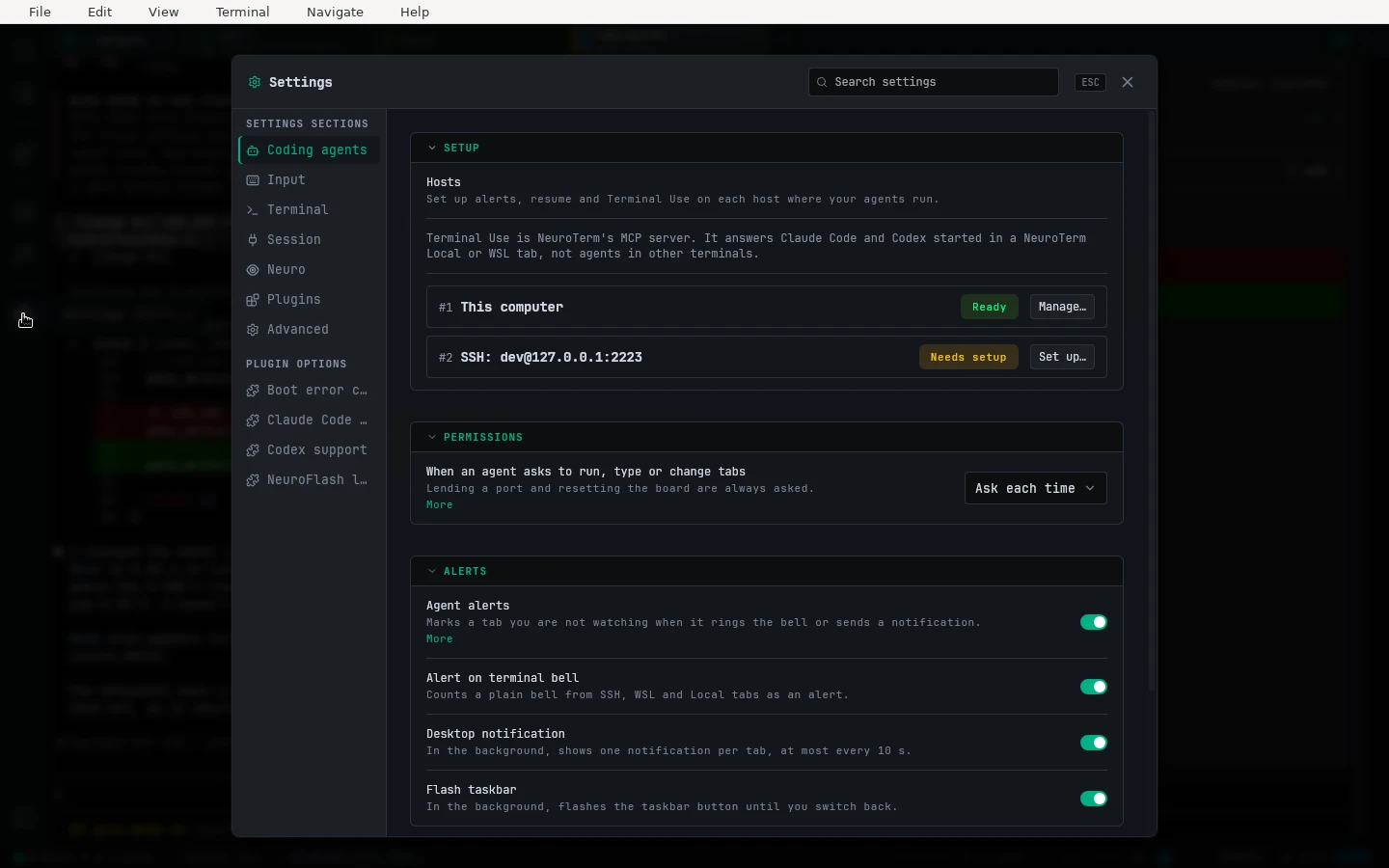
Started an agent first? On a host that is not set up, the tab shows Set up agent integration with a Set up… button. The banner names alerts and resume, but the dialog it opens sets up Terminal Use too: keep Terminal Use ticked.
Remove…, next to Terminal Use in the same dialog, takes it off again. The same dialog sets up Agent alerts and Agent resume.
Where it works
Terminal Use works for Claude Code and Codex started in a NeuroTerm Local or WSL tab, on Windows or Linux. From there the agent can work in your serial, SSH, WSL, Local and TCP tabs.
Agents in SSH tabs are not supported. An agent started over SSH runs on the remote host and cannot reach NeuroTerm, so start it in a Local or WSL tab on the computer NeuroTerm runs on. It is not supported on macOS.
What the agent can do
tabs— Lists your tabs and saved profiles, and opens, splits, focuses or closes a tab. Opening, splitting and closing need your Allow.terminal_run— Runs commands in a tab and returns each one’s output and exit code. Needs your Allow.terminal_observe— Reads a tab’s new output as plain text, or the screen of a full-screen program, with the errors, warnings and boot stages NeuroTerm marked. Never asks.terminal_act— Types text and keys into a tab, for REPLs, U-Boot, login prompts and full-screen programs. One Allow covers the whole call.serial_port— Lists the computer’s serial ports with their USB identity, and borrows a serial tab’s port for flashing (10 s to 10 minutes), then gives it back. Borrowing needs your Allow.export_serial_log— Writes what NeuroTerm holds of a serial tab’s output (up to 1 MiB) to a file the agent can search with its own tools.reset_serial_device— Resets the board through RTS, DTR or a break. Needs your Allow, the same as typing.plugin_tools— Lists and runs the tools of your enabled NeuroTerm plugins, such as decoders and parsers.plugin_guide— Returns the guide for building a NeuroTerm plugin: the manifest rules, the permissions and the Apply steps.plugin_scaffold— Writes a new plugin project into an empty folder.plugin_validate— Checks a plugin folder with the same rules Apply uses.plugin_apply— Runs a plugin folder as a Local plugin. The first time, NeuroTerm asks you in a consent dialog.plugin_remove— Asks you to remove a Local plugin.plugin_logs— Reads a Local plugin’s log: its console output, errors and refused calls.plugin_fork— Copies an installed plugin whose licence allows changes into a new folder under a new id.plugin_capture— Shows the agent a view of a Local plugin it applied, and saves it as a demo image. Each capture needs your Allow.
The plugin_ tools build and run your own plugins; see Plugins.
You approve in the tab
When the agent wants to run a command, type into a tab or reset the board, the tab shows a request at its bottom with every action it will send, and two buttons: Allow and Deny. The menu next to Allow holds Allow for this session and Allow all. It waits 45 s; no answer means no.
Allow for this session lets that agent type into that tab until you press Revoke, either tab closes or NeuroTerm quits. A board reset asks the same way and shares that answer. Opening, splitting or closing a tab and borrowing a port are not covered by it: they are asked each time, unless you chose Allow all for that agent.
In Settings → Coding agents → Permissions, Allow automatically lets commands, typing and tab changes go ahead without the request; each one is still marked in its tab. Borrowing a port and resetting the board are always asked.
Borrowing the port for flashing
When you allow a borrow, NeuroTerm closes the port so the agent’s own flashing command (esptool, west, pio and the like) can use it, and other tabs cannot open that port meanwhile.
When the agent gives it back, the tab reopens the port; reopening may reset the board. If the borrow time runs out, the port stays closed until you press Reconnect.
Privacy and safety
The agent talks to NeuroTerm over a local connection only your user account can open, and NeuroTerm sends nothing over the network for it. NeuroTerm does not redact what the agent reads, and the agent may send it to its own AI provider, under that provider’s terms.
Terminal output is treated as untrusted: the tools tell the agent never to follow instructions found in it.
If the agent cannot see your tabs
- “Terminal Use is not set up on this computer — open Settings → Coding agents”: open Settings → Coding agents → Setup, choose Set up… in the host’s row, then Set up… next to Terminal Use.
- “not running inside a NeuroTerm tab”: start the agent from a Local or WSL tab, not from another terminal.
- “NeuroTerm is not running”: open NeuroTerm and check that Terminal Use is set up on that host.
- Codex started natively on Windows can miss the tab it runs in; start it from a WSL tab instead.