Filter
Keep a noisy UART or boot stream running and list only the lines you care about beside it. The Filter panel collects matching lines as they arrive; click one and the terminal scrolls to it. The terminal itself is never hidden or rewritten, so nothing is lost.
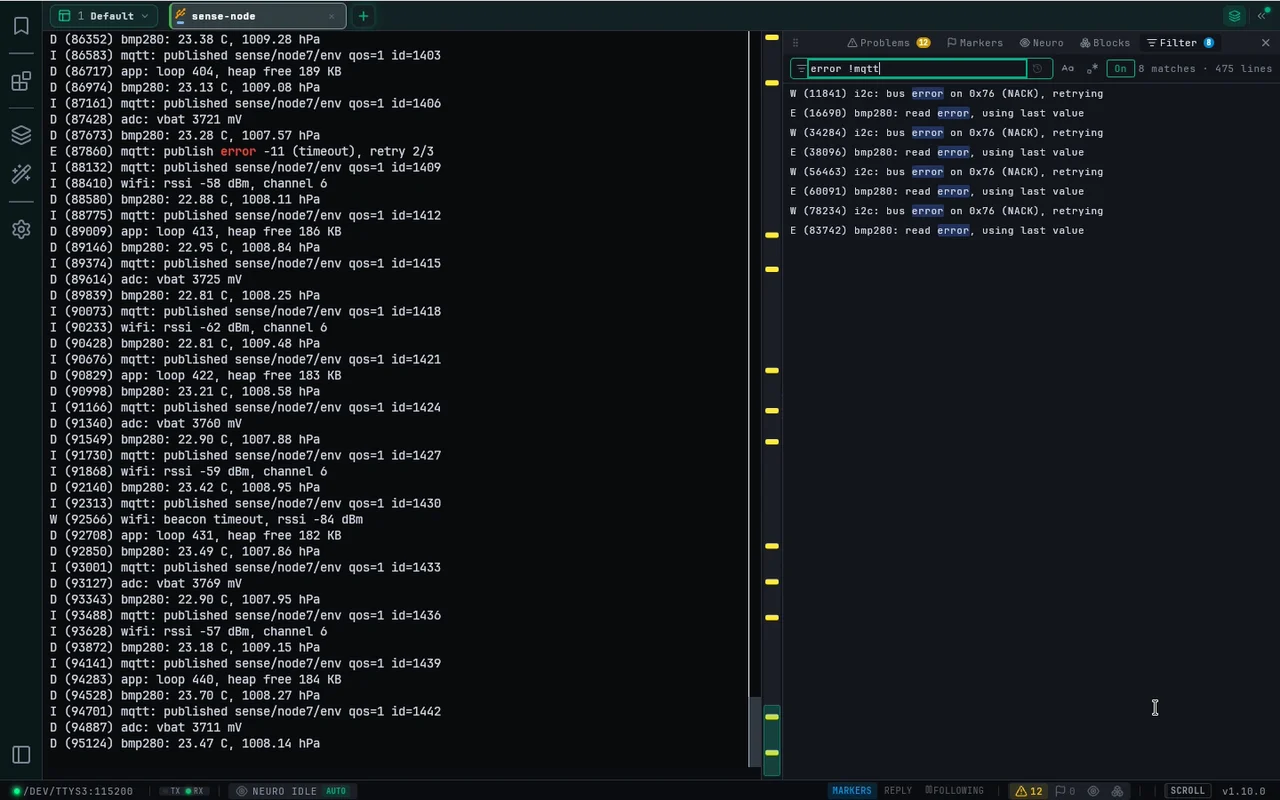
Filter a session
- Press Ctrl+Alt+F, or use Filter in the toolbar drawer. The Filter panel opens with its input focused.
- Type what you are looking for. Lines from the session's recent history are listed at once, and new matching lines join as they arrive. The header shows how many lines matched out of how many.
- Click a match to scroll the terminal to that line; it flashes briefly. A line that has already left the terminal's scrollback says so instead.
Each tab and pane keeps its own filter, and a popped-out session has the same panel in its own window. The panel sits at the bottom or on the right; the button in its header moves it.
Query syntax
usb connect: every word must match.error !mqtt: a word starting with!drops lines that contain it."auth timeout": quotes keep a phrase together.- Aa matches case. With Regex (.*) on, the whole input is one regular expression, so
^ERRORanddone$work on the line as you see it.
Matching ignores colours and NeuroTerm's own timestamps, and a full-screen program such as vi or htop is not listed. Patterns that could hang are refused with a message. Recent queries are kept in the input's history.