Workspaces
Keep the board, build shell and agent for one project together. Switch projects without rebuilding your terminal layout.
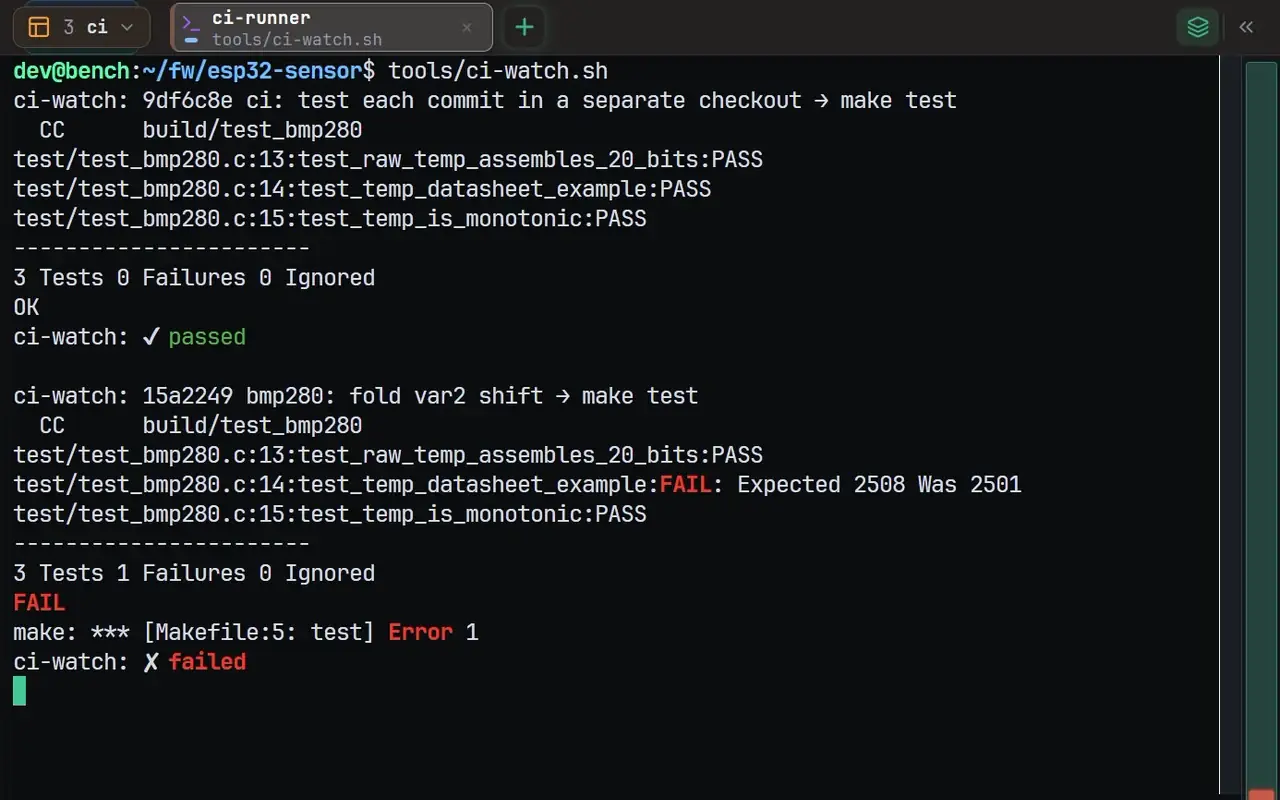
Set up a project
- Open the workspace switcher beside your tabs. Its number and colour identify the current workspace.
- Use the create row, enter a project name and confirm. Open the sessions you need in that workspace.
- Use the row controls to rename a workspace. Drag workspace rows to change their display order.
You can combine serial, SSH, WSL and Local shell sessions. No model download is needed.
Move between projects
- Ctrl+1–Ctrl+9
- Select a workspace by its position in the switcher.
- Ctrl+Tab / Ctrl+Shift+Tab
- Cycle forward or backward in display order.
- Ctrl+`
- Return to the last workspace you visited.
These shortcuts select workspaces. Use the tabs inside a workspace to choose a session. Workspace badges help you spot agents waiting for you.
Limits and recovery
NeuroTerm supports up to 20 concurrent sessions across workspaces and up to four panes in a tab. If a new session cannot open, close an unused session first.
Deleting a populated workspace closes its sessions; review the confirmation before proceeding. The last remaining workspace cannot be deleted. For an accidentally closed session, use Ctrl+Alt+Z. Restoring a tab starts a fresh connection or shell; it does not bring a terminated process back to life.